As you start to use local AI more you may decide to buy a dedicated machine just for running your AI or you may just want to access your AI from another device while you are away from your main machine. This is where remote access comes in and luckily it is incredibly easy to setup.
Two Good Options
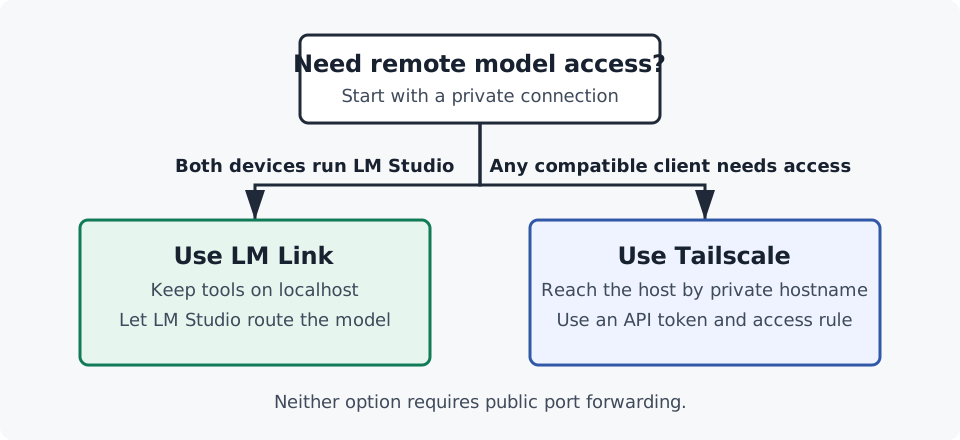
There are two main ways to access your LM Studio server remotely.
- Tailscale - This is the manual process of creating your own VPN that your server and devices will run on.
- LM Link - This is the built-in option for LM Studio that uses Tailscale behind the scenes.
I generally prefer to use Tailscale since it is easy to setup, works with any device, is 100% free, and gives you much more control, but if you have a very simple setup with just two LM Studio instances, LM Link may be best for you.
The Security Boundary
Before configuring either option, make sure you understand the path each request takes.
Client tool -> private network -> LM Studio server -> loaded model
Your client tool could be a browser app, a CLI, VS Code, or another LM Studio installation. The model host is the machine with enough memory and compute to run the model. The private network limits which devices can reach the server.
You do not (and should not) use any port forwarding or public tunnels to expose your LM Studio server directly to the internet since that could open you up to security risks.
Data Access
It is important to note that the model running on your server will only ever be able to access the information you send it. All tool calls, API requests, and data processing happen locally on your machine and only the results are sent to the server model.