Tailscale is a great choice when your client does not support LM Link or when you want more control over the network connectivity between your devices.
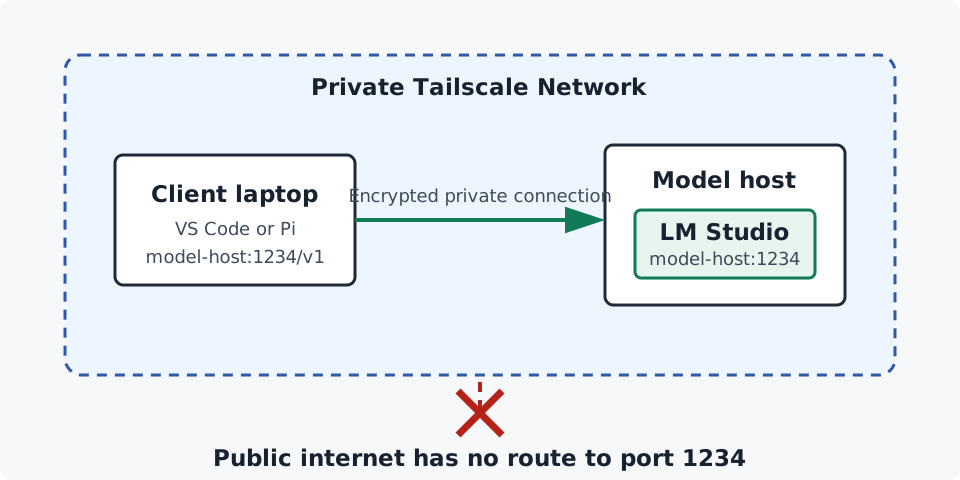
How Tailscale Works
Behind the scenes LM Link is actually just using Tailscale to hook up your remote access, so in order to configure our own Tailscale network we need to know how Tailscale works and what it is doing.
Tailscale creates a private network (called a tailnet) that connects all your devices securely. Each device gets a stable IP address and hostname within the tailnet, and Tailscale handles the encrypted communication between devices. This allows you to access services on one device from another as if they were on the same local network, without exposing them to the public internet.
All of this is handled through a simple client you install on each device and then you just need to sign into the same account on each device for them to all act as if they are on the same network. If you have ever used a VPN for work, Tailscale is the same thing, but we are managing the VPN ourselves.
Setting Up Tailscale
It may sound complex to run your own VPN, but Tailscale is quite easy to setup.
1. Create a Tailscale Account
The first step is to create a Tailscale account at https://login.tailscale.com/start.
2. Download Tailscale
Once you have an account, you need to download Tailscale onto the devices you want to connect to one another.
Run the Tailscale app it will either ask you to sign into your account or it will direct you to a webpage which asks you to verify you want to add this device to your tailnet. Once verified, the device will be connected to your tailnet, but you need 2 devices to test the connection properly.
Download Tailscale on another device (such as your phone) and go through the exact same setup steps. Before moving on, make sure your devices can reach each other through Tailscale. Replace device-name-or-ip with the ip or device name in Tailscale for the device you want to connect to.
ping device-name-or-ip
Each device in Tailscale is given a unique IP address as well as a unique domain name that you can use instead of the IP address. You can change the machine name for each device which will automatically update the domain name.
Common Issue
On Android if your default browser is not Chrome you may have issues logging in. Just change your default browser to Chrome when logging in via Tailscale and then change it back when you are done.
Allowing LM Studio Access To Your Local Network
Open LM Studio's Developer tab and enable Serve on Local Network.
This changes the server from a localhost only server to one that can accept network connections. It does not make the server public by itself. Your router still has no public port forwarding rule, and Tailscale controls which tailnet devices can connect.
Adding Extra Security
If you want you can turn on Require Authentication in LM Studio and create an API token to add an extra layer of security. This is not strictly necessary since Tailscale prevents unauthorized access to our devices, but you can add this extra protection if you want.
Connecting To Our Dev Tools
The only things that needs to change in our dev tool connections is we need to replace the 127.0.0.1 or localhost address with the Tailscale hostname or IP address of the model host. For example, if your domain name was host-desktop your URL would go from http://localhost:1234/v1 to http://host-desktop:1234/v1.
You can test the connection by doing a simple curl from the client. The below command should return a list of models.
curl http://device-name-or-ip:1234/v1/models
Securing Tailscale
By default Tailscale is 100% secure, but if you want to add an extra layer of security you can enable the Device Approval option in Settings -> Device Management. This makes it so no new devices can be added to your account unless they are approved by an admin first.
Multiple Users
Unlike LM Link Tailscale can be used with multiple users. You can manage/invite users from the Users tab. This is the ideal option if you are working on a team and you have a single server that many different developers are connecting to. Each developer has one user account which they can use multiple devices with and the admin can control all of it through Tailscale.
If you have multiple users you also would want to restrict which devices they can access. In the Access Controls -> Policies menu you need to remove the default policy (that gives total access) and add a new policy that only allows access to port 1234 on the model host IP.
Set the Destination to the model host IP and the Port to tcp:1234. This ensures your team cannot access each other's devices unintentionally.
Try It Yourself
If you haven't already, try setting up Tailscale between your phone/other device and your main machine.
- Create a Tailscale account
- Setup Tailscale on both devices
- Load a model on the host and change your LM Studio server to
Serve on Local Network. - On the client, configure your dev tools to use the Tailscale hostname or IP address of the model host.
- Send the host model a short prompt from your client dev tools.
- Optionally configure security for multi user situations and test that the only port you can access is the one you configured.